
Doughboys Stickers

16 original stickers for iMessage, featuring Mitch, Wiger, and familiar Doughboys favorites. Published by VAN BRAND.
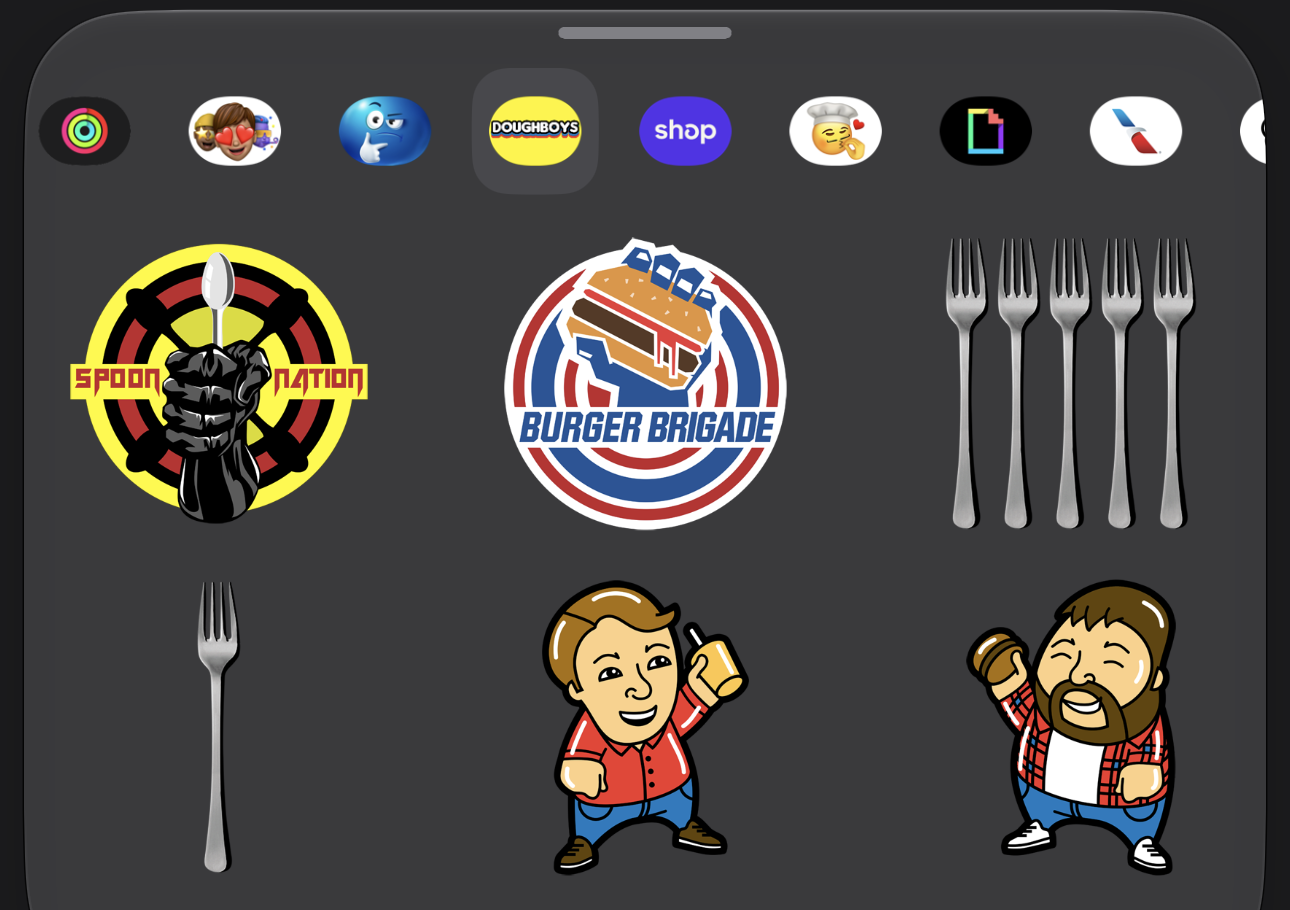
Use Doughboys Stickers in Messages
- Install Doughboys Stickers from the App Store when it is available in your region.
- Open Messages on your iPhone or iPad and open an iMessage conversation.
- Tap the + button beside the message field and choose Stickers. Swipe across the app icons at the top of the sticker picker, then tap the Doughboys pack icon.
- Tap a sticker to add it to your message, then tap Send. You can also touch and hold a sticker and drag it onto a message in the conversation.
On older versions of iOS or iPadOS, open the iMessage app drawer beside the message field and select Doughboys Stickers.
Can't find the sticker pack?
Check Settings → Apps → Messages → iMessage Apps and turn on Doughboys Stickers if it appears there. On older system versions, look for Messages directly in Settings or manage apps from the Messages app drawer.
If you previously installed the pack, check your App Store account's app history. If it is unavailable to download, contact support. For more help, see Apple's guides to sending stickers and using iMessage apps.
Contact support
For Doughboys Stickers installation issues, bugs, feedback, or privacy questions, email support@doughboys.media.
Please include your device model, iOS or iPadOS version, and a short description of the issue. Do not send private conversations or other sensitive information unless needed to explain the problem.
App privacy
Doughboys Stickers contains bundled sticker images and does not collect personal data. It has no account, developer-operated backend, analytics, advertising, or tracking.
Read the Doughboys Stickers privacy policy for details, including support email and website hosting.
Support information updated October 2, 2026.